
Tables and QR codes
Each table has a name and a QR code. Guests scan the code to open the menu for that table, so every table needs its own code on the table.
Add a table
Section titled “Add a table”- Open the restaurant and find Tables.
- Select Add Table.
- Enter the Table Name/Number, for example Table 1 or Patio A.
- Save the table.
- Select Show QR Code to check that the code opens the right table.
A table holds only a name or number. KuKA does not store capacity, a zone or a floor plan.
Rename a table
Section titled “Rename a table”Open the table, change the Table Name/Number and save. The QR code keeps working after a rename, because the code points at the table, not at its name. You do not need to reprint the cards when you rename a table.
Print the QR codes
Section titled “Print the QR codes”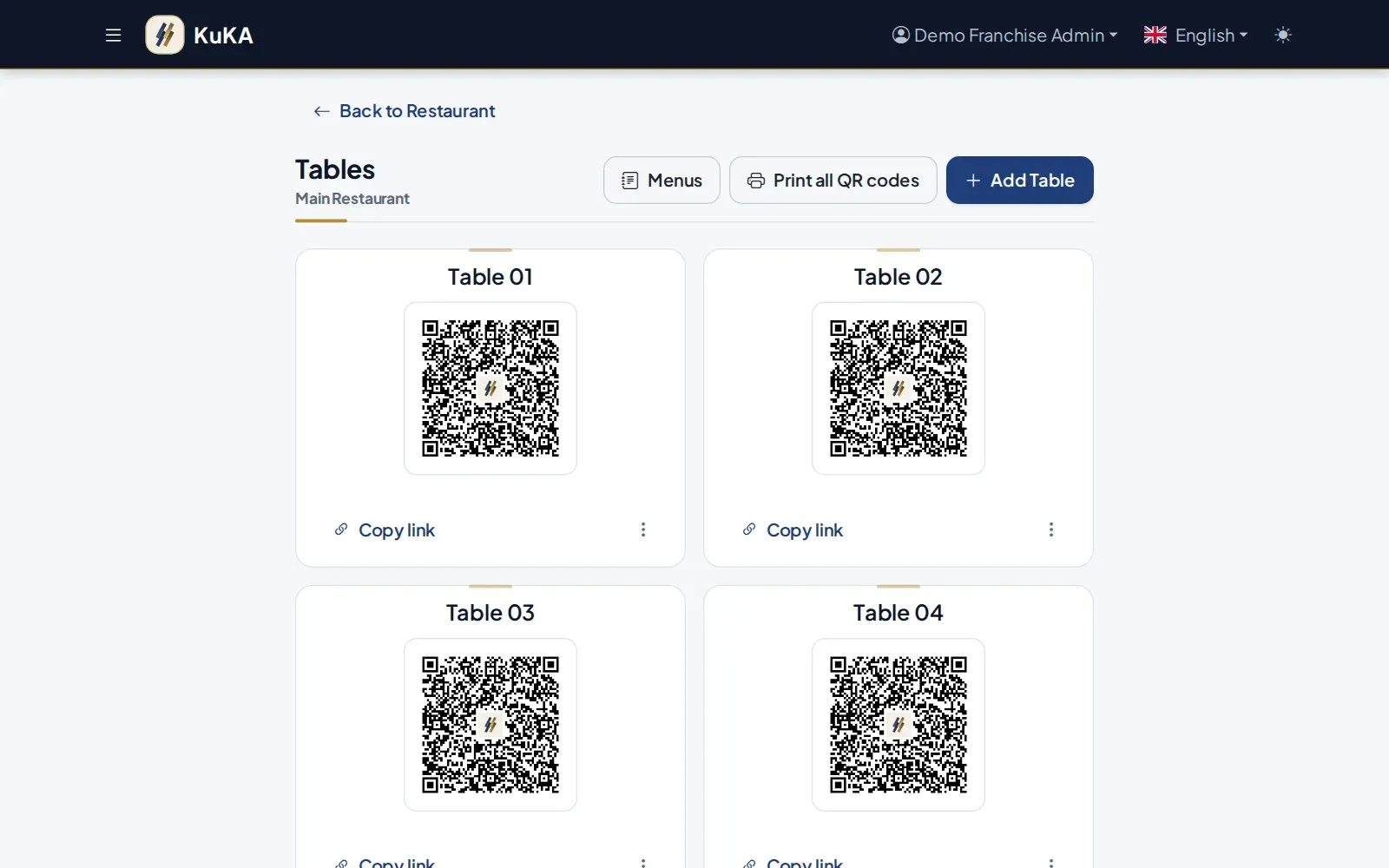
From the table list you can:
- Download the QR code as a PNG for one table.
- Print one card for one table.
- Print all QR codes in one go.
Printing uses your browser’s print dialog. Choose the printer and the paper size there. There is no printer setup in KuKA, no thermal printer and no kitchen ticket printer.
Delete a table
Section titled “Delete a table”Delete a table only when the table is gone from the room. The confirmation asks you to confirm, because the table and its QR code disappear from the list. Remove the printed card from the room at the same time.