
Schedule a menu
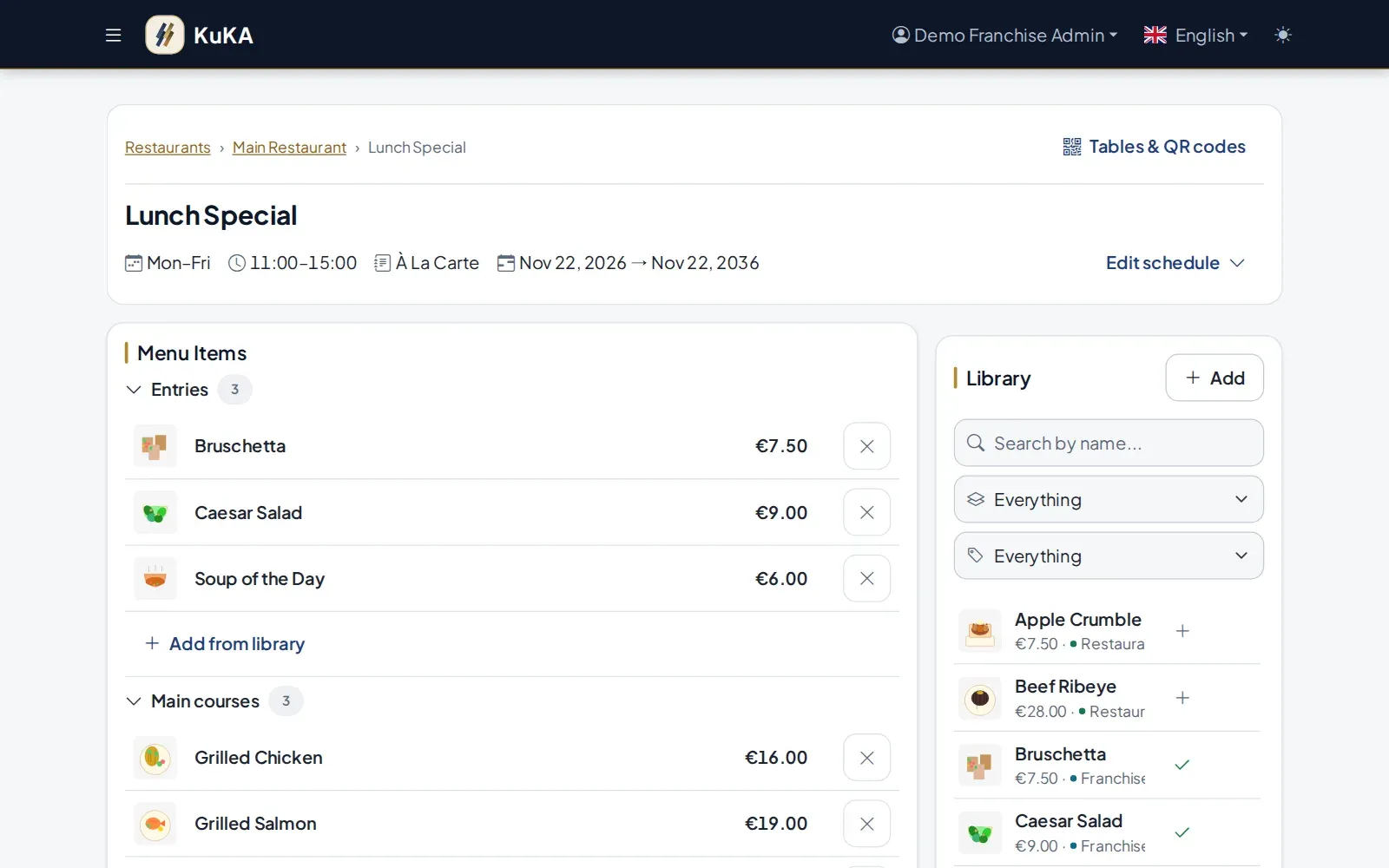
A menu is only visible to guests while its schedule is active. The schedule has three parts: the dates, the hours and the days of the week.
Set Valid From to the first day the menu is offered. Set Valid Until to the last day, or choose No end for a menu that runs until you stop it. The end date must be on or after the start date. When you change Valid From, the new date cannot be in the past.
Set the hours when guests can order from the menu, or choose All day. A window must start and end on the same day. Overnight windows such as 22:00 to 02:00 do not work. For a late menu, split it into two menus: one that ends at 23:59 and one that starts at 00:00. Do not set 00:00 as the end of a late window: the hours are compared inclusively, so a window that starts later and ends at 00:00 is never active.
Choose Valid all days of the week or tick the days that apply. Sunday to Saturday are all available. When no day is selected, KuKA treats the menu as valid every day.
The restaurant time zone decides
Section titled “The restaurant time zone decides”Every schedule is evaluated in the restaurant time zone, not in the guest’s time zone and not in your own. A lunch menu set for 12:00 to 15:00 opens at 12:00 where the restaurant is, even if a guest is browsing from another country.
When a menu is inactive
Section titled “When a menu is inactive”An inactive menu disappears for guests. It does not show as closed and it does not show its items. If no menu is active, the guest sees a message that ordering is not available, so make sure the schedule always covers your service hours.
No exceptions
Section titled “No exceptions”KuKA has no holiday exceptions, date exceptions or special opening hours beyond the schedule. For a public holiday with different hours, either edit the schedule for that day or create a separate menu with a schedule that fits. Change it back when the holiday is over.