
Create an a la carte menu
An a la carte menu has a price for each item. Guests choose individual dishes and drinks, and the total is the sum of what they order.
Create the menu
Section titled “Create the menu”- Open the restaurant and select Add Menu, or open Menus and select Create Menu.
- Enter a Menu Name, choose the Restaurant and set Menu Type to A La Carte.
- Add the schedule: when the menu starts, whether it ends and which days and hours it applies to.
- Select Create Menu.
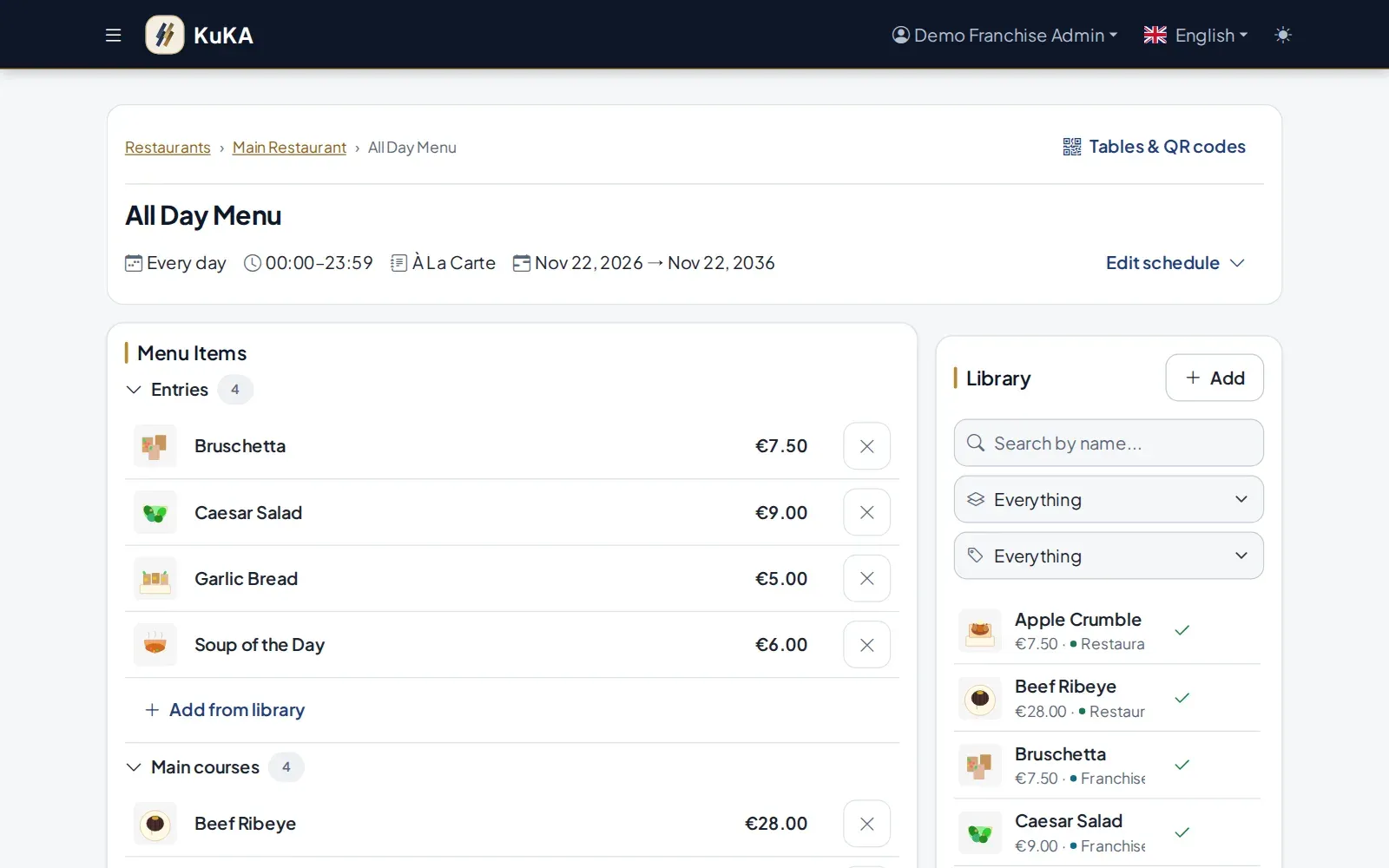
- In the menu editor, select Add from library, search the catalog and add each item you want.
- Check the price of every line, then save.
Prices
Section titled “Prices”Each line shows the item’s Base Price. To change it, use Edit price of on the line, enter the new price and confirm. The change is saved on the item, not only on this menu.
That has a consequence for shared items: if the item is Franchise Level, the new price applies in every menu that uses it. When a location needs its own price, create a Restaurant Level item and use that copy on the menu instead. See Menu items catalog.
Remove an item
Section titled “Remove an item”Use Remove from Menu on the line. The item stays in the catalog, so you can add it back later. Removing an item from a menu is also how you stop selling it, because KuKA has no sold-out switch.
Copy a menu
Section titled “Copy a menu”Copy Menu creates a new menu with the same details and items. The copy gets the menu name with - Copy added, so you can rename it for another service, another day or another restaurant. Check the schedule and the prices after copying; they are copied too.