
Restaurants
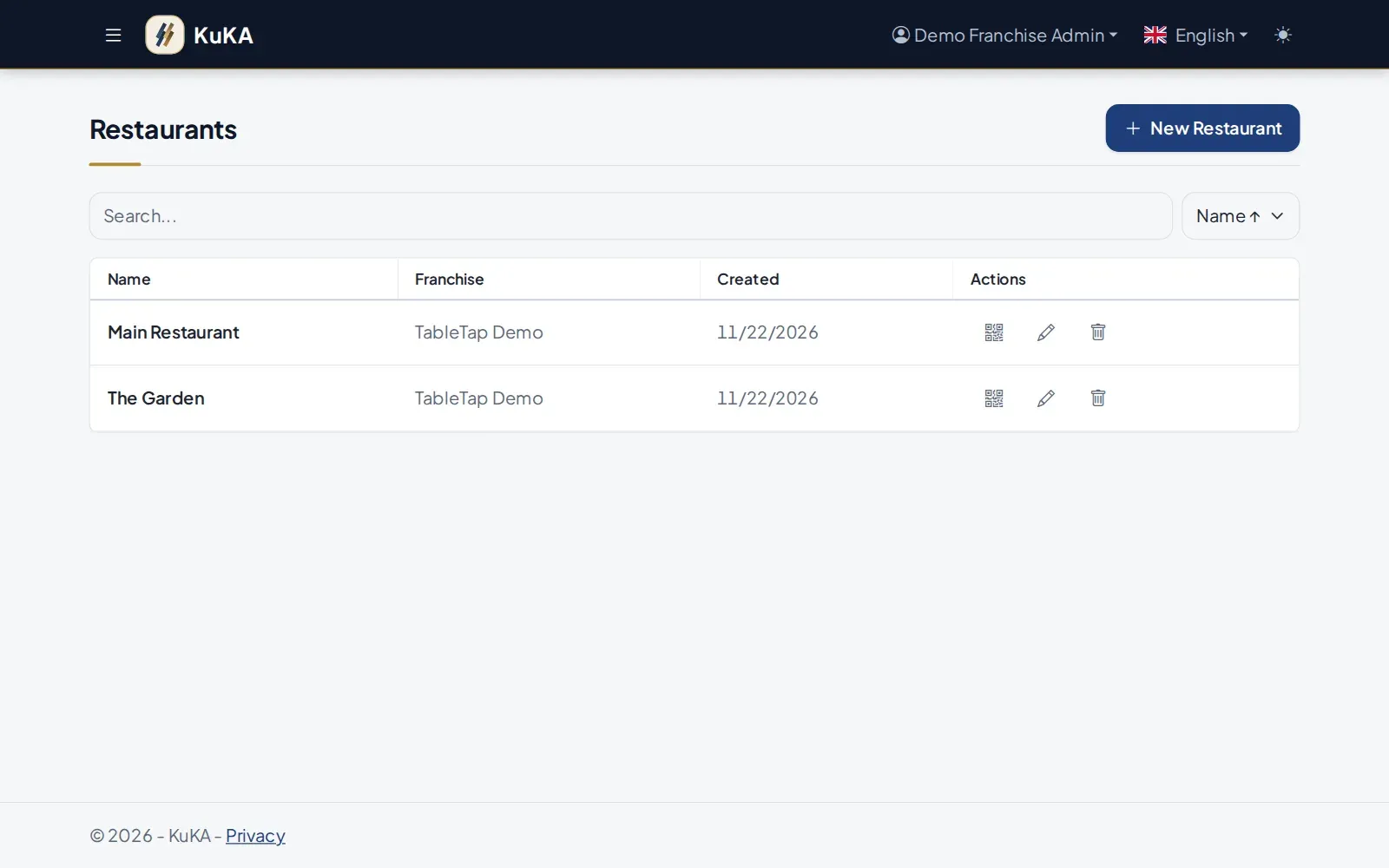
A restaurant is one location where guests sit and order. A franchise can have one restaurant or many, and each one has its own tables, menus and time zone.
Add a restaurant
Section titled “Add a restaurant”- Open Restaurants and select Create Restaurant.
- Enter the Restaurant name.
- Choose the Time Zone of the location.
- Select Save.
Edit a restaurant
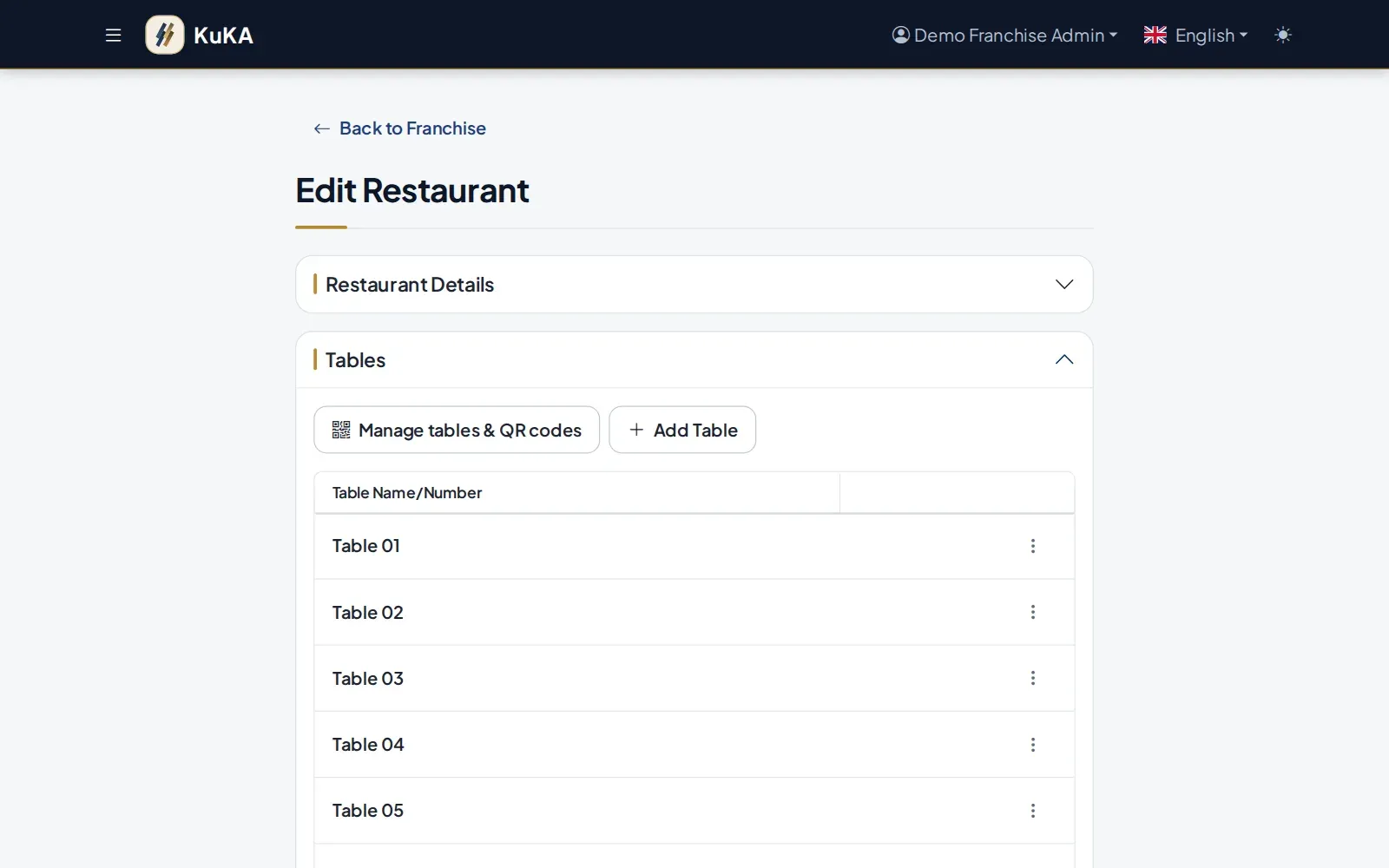
Section titled “Edit a restaurant”Open the restaurant and select Edit. You can change the Restaurant name, its Franchise and its Time Zone. The same page is where you manage its tables and menus, so it is the main page for that location.
Why the time zone matters
Section titled “Why the time zone matters”The restaurant time zone is not cosmetic. KuKA uses it for:
- Menu schedules. A menu that starts at 12:00 starts at 12:00 in the restaurant, not on the guest’s phone and not in your head office.
- Report periods. Today, yesterday and every custom range follow the restaurant time zone. With one restaurant selected, that is its own zone. With several, the first restaurant in the list (the first by name when you choose All restaurants) sets the dates for all of them, so a restaurant in another zone can report a different local day.
If the time zone is wrong, a lunch menu can disappear early or reports can put late orders on the wrong day. Set it when you create the restaurant and check it again when daylight saving changes.
Delete a restaurant
Section titled “Delete a restaurant”Open the restaurant, choose the delete action and confirm. Deleting a restaurant removes its tables and menus from your day-to-day work. Do it only when you have closed the location for good.