
Create a menu item
An item is one dish or drink. You create it once in the catalog and can add it to any menu that uses its scope.
Create an item
Section titled “Create an item”- Open Menu Items and select Create Menu Item.
- Enter a Name and an optional Description.
- Enter the Base Price.
- Choose the Type: Entry, Main Course, Dessert or Drink.
- Select a Picture if you have one, then tick every Allergens the item contains.
- Save the item.
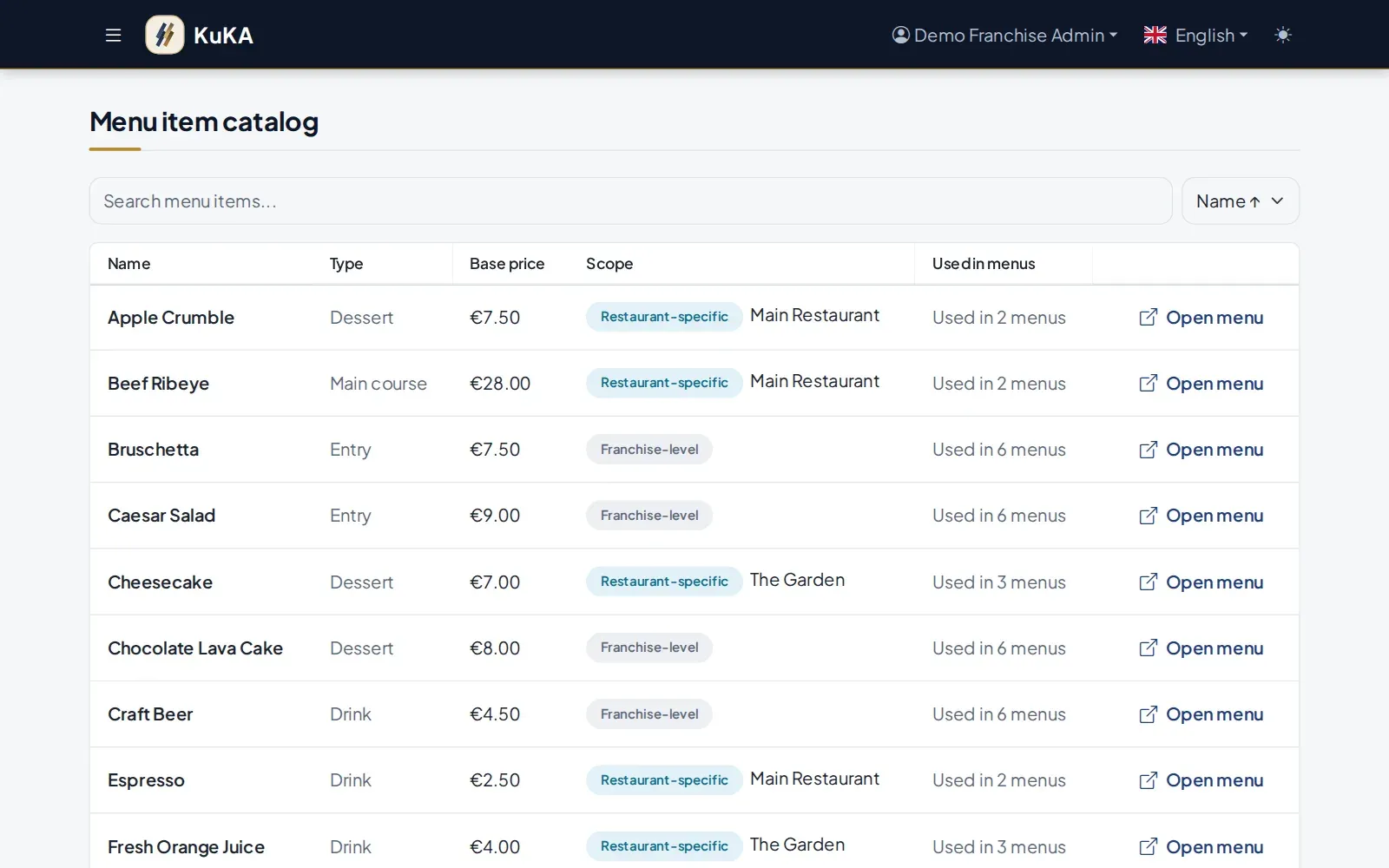
Type decides the station
Section titled “Type decides the station”The type is more than a label. It decides where the line is prepared and how guests filter the menu:
- Entry, Main Course and Dessert go to Kitchen.
- Drink goes to Bar.
A wrong type sends the food to the wrong screen. If a dessert is set as a Drink, the bar makes it and the kitchen does not see it. Check the type whenever an item appears in the wrong place.
Guests can filter the menu by the same four types: entries, main courses, desserts and drinks.
Picture
Section titled “Picture”Select a JPEG, PNG, GIF or WebP image up to 5 MB. KuKA rejects other formats. One image belongs to the item, so changing it changes it on every menu that uses the item.
Allergens
Section titled “Allergens”Tick every allergen the item contains. KuKA shows the 14 allergens from EU Regulation 1169/2011 to guests, with a short explanation of each:
Gluten, Crustaceans, Eggs, Fish, Peanuts, Soy, Milk, Tree nuts, Celery, Mustard, Sesame, Sulphites, Lupin and Molluscs.
Leave an allergen unticked only when you are sure the item does not contain it, including sauces, dressings and garnish. Guests use this list to decide what is safe to order.
What an item does not have
Section titled “What an item does not have”KuKA items have no categories, no modifiers or extras, no option groups and no sold-out switch. To stop selling an item, remove it from the menu or change the menu schedule. The item stays in the catalog for later.