
Staff accounts
Only a Franchise Admin manages accounts. Open Accounts in the menu to see everyone who can sign in to your franchise.
Every account is created by email invitation. The admin enters the person’s details and KuKA sends a link. The person opens the link, chooses their own password and is signed in. The admin never sets or sees the password.
Invite a staff member
Section titled “Invite a staff member”- Open Accounts and select Create Account.
- Enter the Display Name and Email.
- Choose the Role: Staff or Franchise Admin. You can set Restaurant Manager later on Edit.
- For a Staff account, select at least one restaurant under Restaurants.
- Select Create Account. KuKA emails the invitation.
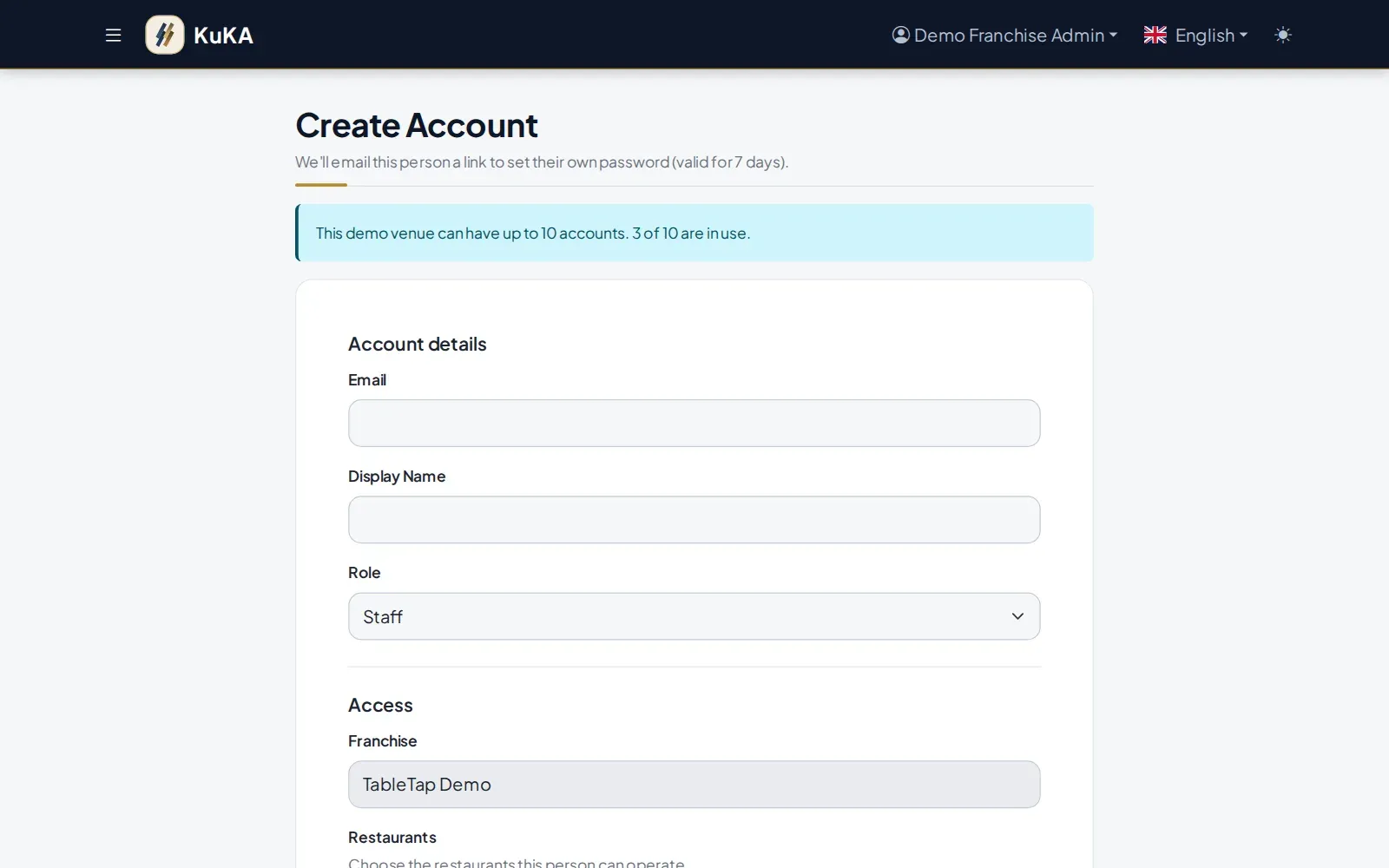
The invitation link works once and expires after 7 days. Until the person accepts it, the account shows the status Invited. When they set a password, the status becomes Active. A disabled account shows Disabled.
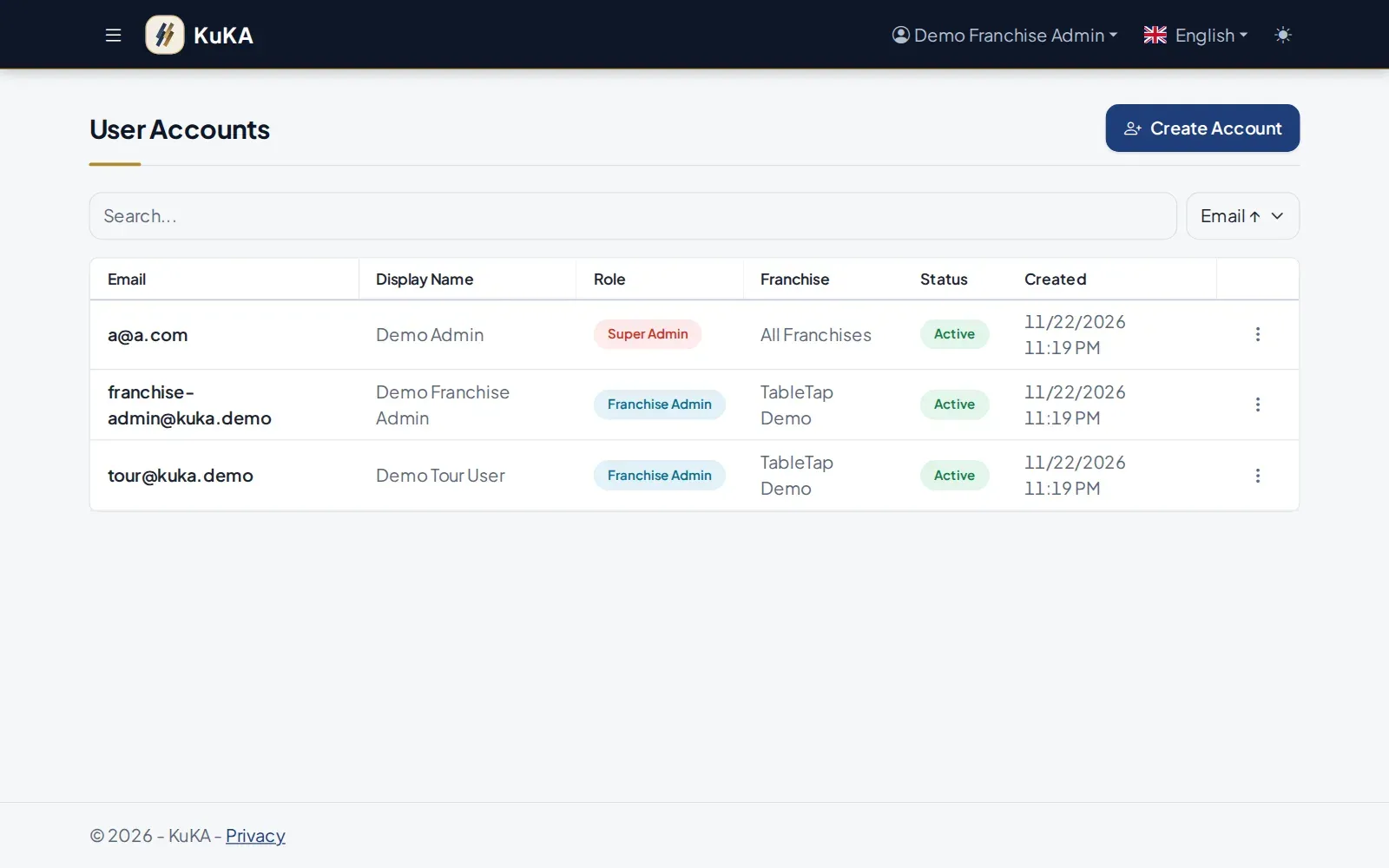
If the invitation email cannot be sent, KuKA tells you. The previous link stops working, so the person cannot use an old email. Select Resend invitation to send a fresh link.
Edit an account
Section titled “Edit an account”Open an account and select Edit. You can change the Display Name, the Email, the Role and the Restaurants.
For an invited account, saving sends a fresh invitation. For an active account, you can send a set-password link with Send set-password link. That link is valid for 1 hour.
Staff and Restaurant Manager accounts are tied to restaurants. Select at least one restaurant for them. They only see the restaurants you select. A Franchise Admin sees every restaurant in the franchise.
Disable or delete
Section titled “Disable or delete”Set Disabled on the account to block sign-in without losing the account. To remove the account permanently, use the delete action on the account. The confirmation warns you that the change cannot be undone.