
Scan and order
Guests order from their own phone. They do not install an app and they do not create an account. The whole flow starts with the QR code on the table.
From the QR code to the order
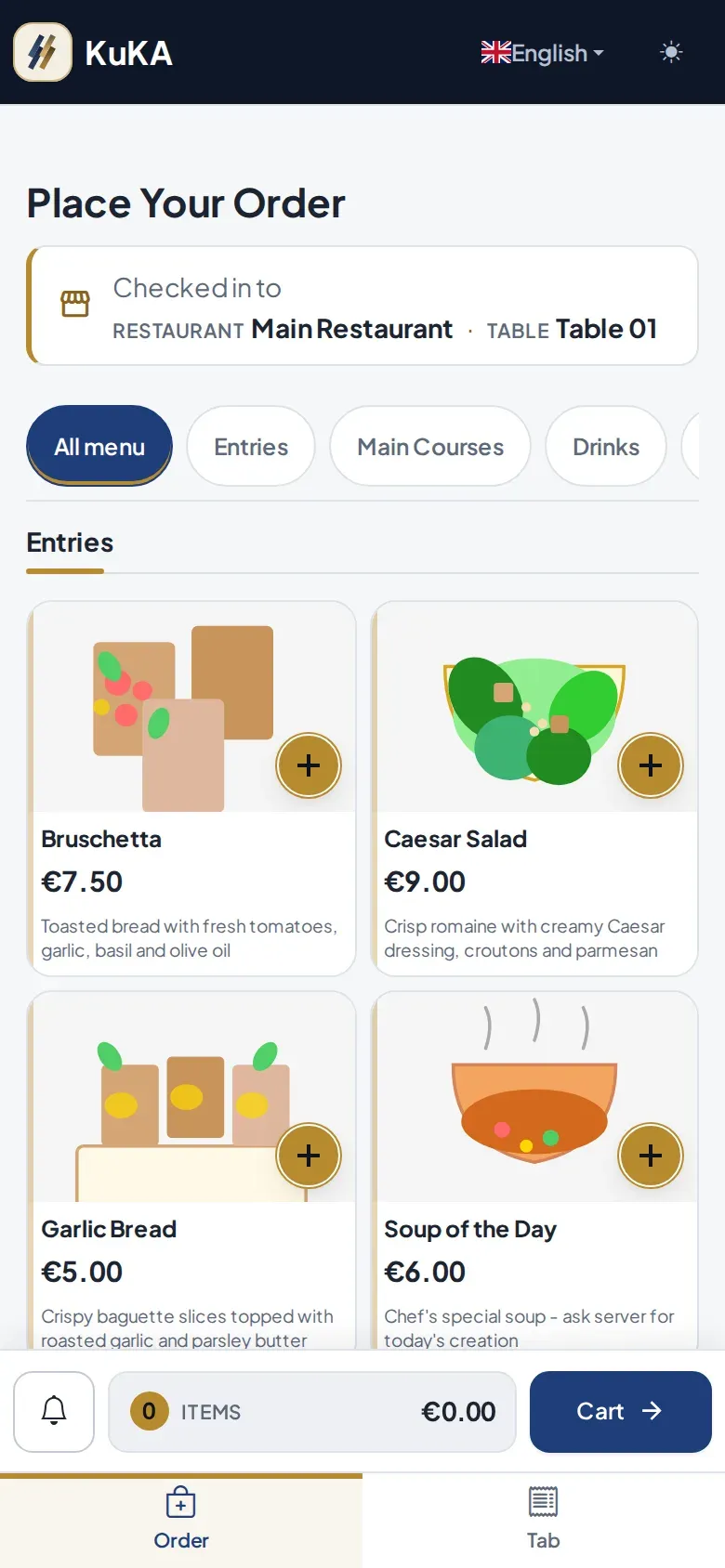
Section titled “From the QR code to the order”- The guest scans the QR code on the table.
- The menu opens in the phone browser for that restaurant and table.
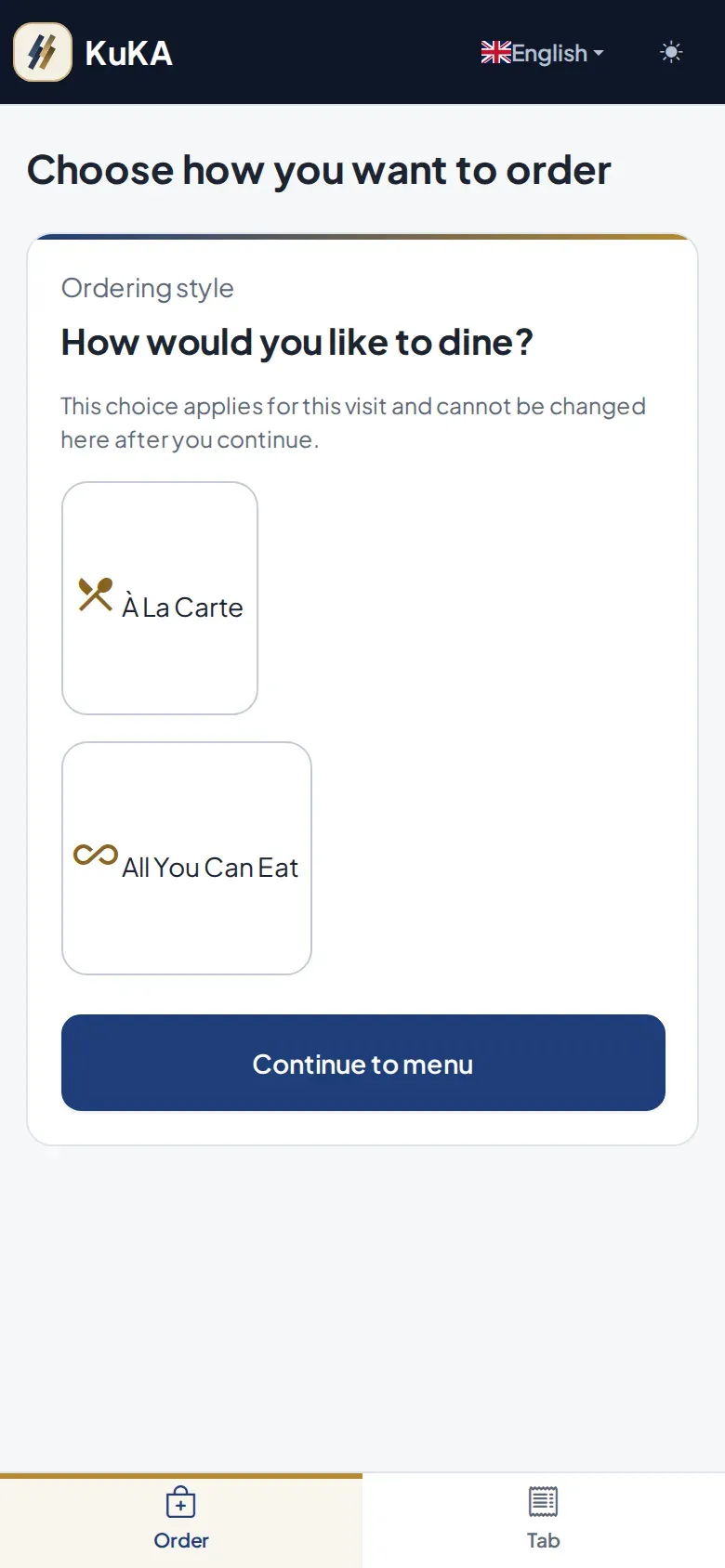
- If the restaurant has more than one ordering style available, the guest chooses it first.
- The guest browses the menu and uses the type filters or the allergen information.
- The guest adds items to the cart, checks the quantity and selects Order.
KuKA remembers the guest on that phone for 30 days with a cookie. If the guest closes the browser and scans again during the meal, their cart, orders and tab are still there. Clearing the browser cookies starts a new guest.
Browsing the menu
Section titled “Browsing the menu”The guest sees the item picture, name, description, price and allergens. The type filters narrow the list to All menu, Entries, Main Courses, Drinks or Desserts. Tapping the allergen information opens a sheet that explains each allergen on an item.
Quantities can be increased and decreased in the menu or in the cart. Nothing is sent until the guest selects Order.
Ordering more
Section titled “Ordering more”After the first order, the guest can keep browsing and order again. Each order is added to the same guest tab, and the kitchen and bar receive it as a new order. The guest can also open the tab to see what they have ordered and the running total.
Every guest who scans gets their own guest tab at the same table. When several people order, each one sees their own orders and the table total.
When ordering is not available
Section titled “When ordering is not available”If no menu is active, the guest sees a message instead of the menu. That usually means the menu schedule does not cover the current time in the restaurant. Check the schedule before you assume the QR code is broken.