
Reports overview
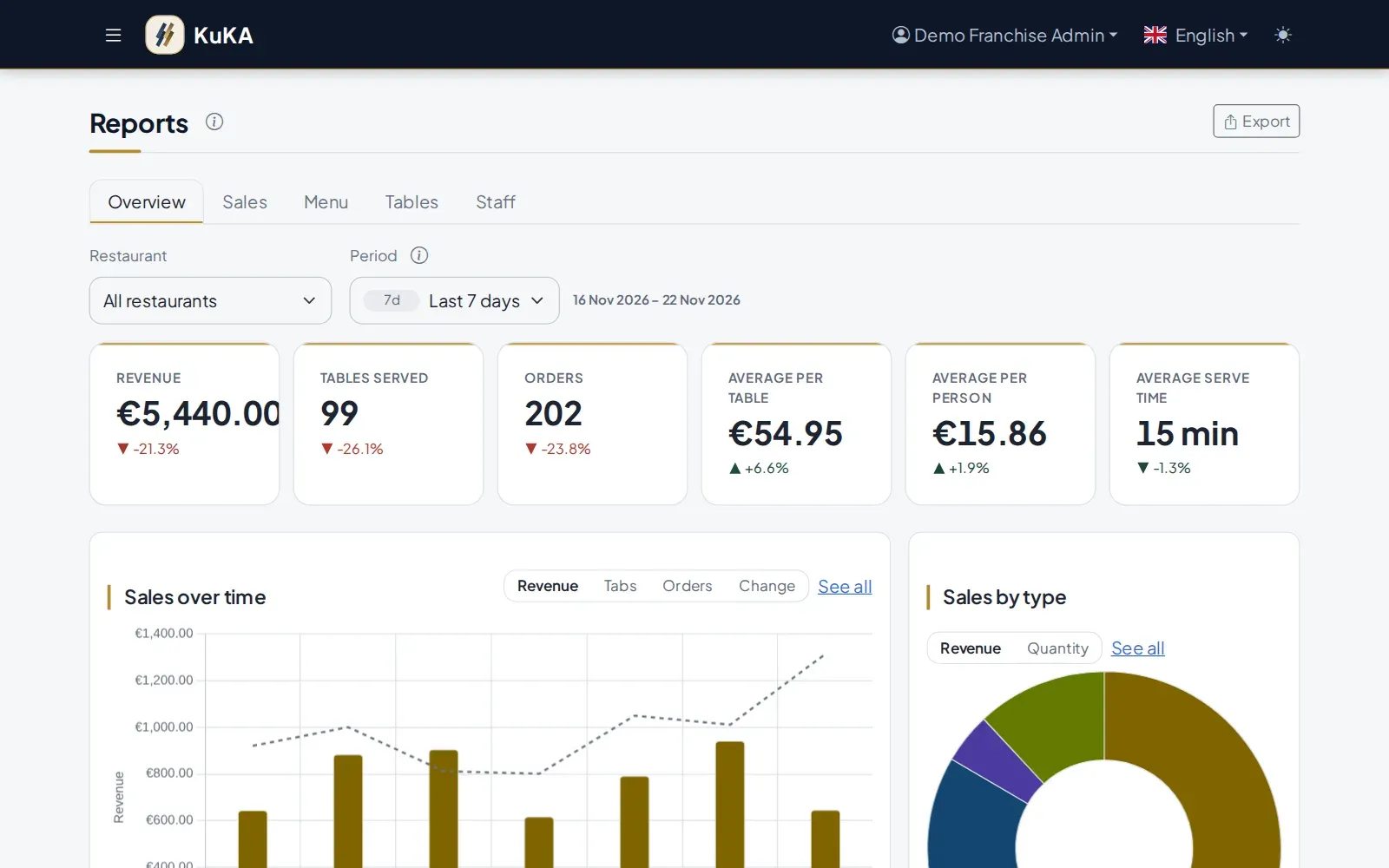
Reports show how your restaurant performed. They are built from tables that have been closed and reset, so they describe finished sittings rather than the floor right now.
Who can see reports
Section titled “Who can see reports”Staff, Restaurant Managers and Franchise Admins can open Reports. Everyone sees only the restaurants assigned to them:
- Staff see their restaurants and do not see the Staff tab.
- Restaurant Manager accounts see their restaurants, including the Staff tab.
- Franchise Admin accounts see every restaurant in the franchise.
A platform administrator, outside a franchise, sees every franchise. That role is not part of your team.
The five tabs
Section titled “The five tabs”| Tab | What it answers |
|---|---|
| Overview | How did the period compare with the one before? |
| Sales | When and how did the money come in? |
| Menu | What sold, and what was cancelled? |
| Tables | Which tables bring the most, and how long do they stay? |
| Staff | Who served, delivered and prepared the food? |
The Staff tab is hidden from floor staff.
Periods and comparison
Section titled “Periods and comparison”Choose a Period: Today, Yesterday, Last 7 days, Last 30 days, Week to date, Previous week, Month to date, Previous month, Year to date, Previous year or Custom. A custom range can be up to 366 days long.
Most periods are compared with a previous period of the same length. The percentage on a metric tells you whether it went up or down. The calendar periods (Month to date, Previous month, Year to date and Previous year) are the exception: they compare the same calendar range a month or a year earlier, so a leap year puts 366 days against 365. In the Sales tab the previous period can also be overlaid on the chart.
Use Group by to choose Day, Week or Month for the time axis. Days are the default for short ranges; weeks and months are easier for long ones.
Scope and filters
Section titled “Scope and filters”Use Franchise and Restaurant to choose what the report covers. All restaurants combines every restaurant you can see. When more than one restaurant is included, the Tables tab adds a Restaurant column.
Times follow the restaurant time zone, not the time zone of the person reading the report.
No data
Section titled “No data”If the period has no closed tables, KuKA says so instead of showing empty charts. Older closed tabs from before item history was recorded can still count in revenue while missing from item, type and staff figures; the page tells you when that applies.